


Technology Basics – Part 3: Collaborating with Confidence
Mastering Microsoft Teams Like a Pro
Welcome to the third instalment of the “Technology Basics” series, brought to you by the Law Society’s Representation and Law Reform department. This series aims to offer lawyers practical tips on how to make the most of your technological tools in your daily practice. Read Part 1 on Microsoft Outlook (Taming the Inbox) here and Part 2 on Microsoft Word (Commanding the Content) here.
This article focuses on Microsoft Teams, a versatile collaboration and communication tool designed to enhance productivity in office environments. Microsoft Teams is equipped with messaging, video-conferencing, and file-sharing capabilities, creating a comprehensive digital workspace for meetings, team collaborations, and project management.
Note: The features discussed in this article are based on the Microsoft Teams business and/or work plan which requires a paid enterprise subscription. These features may not be available and/or may appear differently on the Microsoft Teams free and/or personal plans.

Introduction
Lawyers and law practice support staff often collaborate on case files and deliverables in teams. Real-time collaboration and communication tools such as Microsoft Teams offer a more organised platform for sharing documents, resources, and feedback compared to traditional methods such as email correspondence.
Here is an overview of what this article covers:
- Chat – Group Chats, Pinned Chats, and Mentions
- Teams – Understanding Channels
- Calendar – Scheduling Meetings
- Meetings – Optimising Meeting Features
- Apps – Enhancing Workflows and Productivity
1. Chat – Group Chats, Pinned Chats, and Mentions
Group Chats
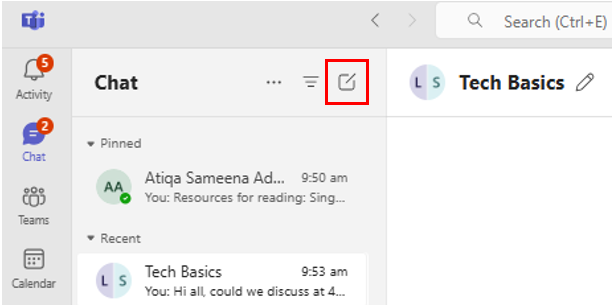
In Chats, you can have one-on-one or group conversations. To start a new group chat, select New chat  , as shown below, and enter the names of the people you wish to include.
Pro Tip: Create group chats with colleagues working on the same matter for quick, informal discussions and updates.
Pinned Chats
Overwhelmed by endless chats? Microsoft Teams’ “pin” function allows you to prioritise and access important conversations easily by keeping them at the top of your inbox. To pin a chat, right-click on it and select “Pin”, as shown below.

Pro Tip: Search for your name in the search bar, message yourself on Microsoft Teams, and pin the chat with yourself to easily access important information or create handy to-do lists.
Mentions
It is easy to overlook your messages in the chaos of a busy day. To ensure your colleagues receive your important communications, utilise the “mention” function. Simply type “@” in the chat box and select the recipient’s name to send them a notification. This ensures that your message stands out and receives prompt attention, which is crucial for time-sensitive legal matters.
Pro Tip: Use “@everyone” in group chats to notify all members simultaneously, ensuring no one misses important updates.
2. Teams – Understanding Channels
Teams in Microsoft Teams consist of channels, which facilitate conversations among team members. These channels can be dedicated to an entire law firm or specific topics, departments, or projects, serving as the central hub for all related communications and document sharing. This organisation helps maintain clarity and focus on distinct legal matters you handle.
Channels support text, audio, and video conversations, as well as file-sharing and application integration. Channel conversations are visible to everyone who has been invited to the channel, while chats are private interactions between individuals or small groups.
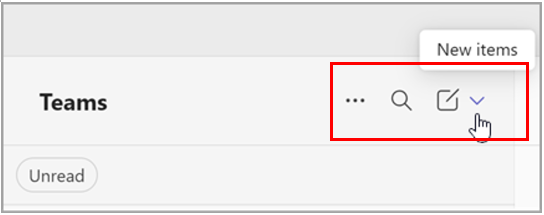
To start a Teams channel, select Teams  -> New items -> New channel
  .
.
Pro Tip: A team channel is ideal for firm-wide communication and for large-scale matters involving multiple clients and/or legal teams. Conversely, for private discussions amongst individuals (e.g. a lawyer and an individual client or a lawyer and his/her support staff), creating a chat is more suitable.
3. Calendar – Scheduling Meetings
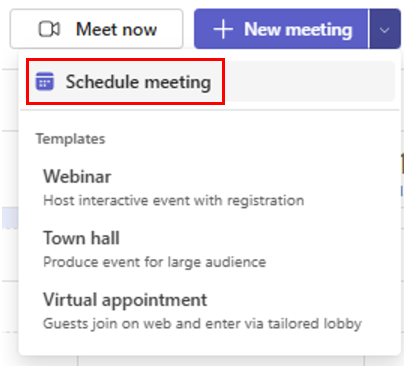
To schedule a video call, click on “Calendar” and select “Schedule meeting” as shown below, or any other meeting type from the top right-hand corner of the page. Different meeting types are available to suit your needs. The Microsoft Teams Calendar is integrated with Microsoft Outlook, meaning that sending a meeting invite through Microsoft Teams will automatically generate a calendar invite in Microsoft Outlook complete with the meeting link and passcode for all participants.
Pro Tip: If an urgent last minute discussion is required, you may utilise the “Meet now” function located at the top right of every chat to initiate an instant meeting, as shown below. This eliminates the need to circulate calendar invites with the meeting link and passcode.

4. Meetings – Optimising Meeting Features
Here are some Microsoft Teams meeting features to enhance your collaborative experience:
Screen Sharing
Screen sharing is a useful feature that allows you to present documents or other content during a Microsoft Teams meeting. To enable screen sharing, click Share  . There are two types of screen sharing:
- Screen: Displays everything on your screen.
- Window: Shares a specific window, such as a browser tab that is open.
The Screen option is useful for toggling between multiple applications that are open, whereas the Window option is ideal for sharing specific documents or presentations without exposing other open applications.
Pro Tip: You can toggle the option to turn on or off your device’s sound in the screen sharing menu, thereby reducing distractions during a meeting. Remember to enable this feature if you are sharing a video with audio during a meeting.
Microsoft Whiteboard
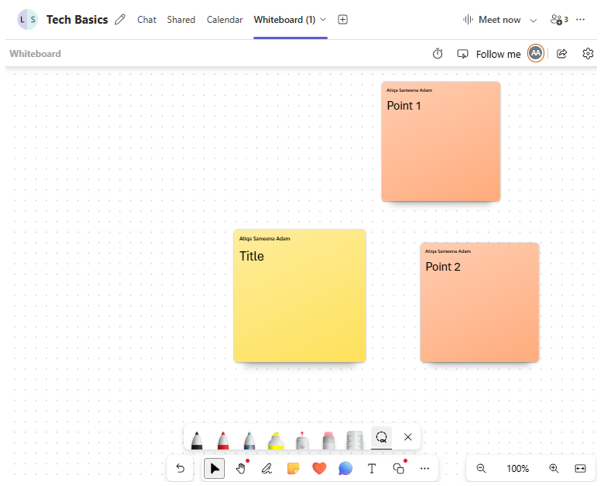
The Microsoft Whiteboard, as shown below, is a collaborative page visible and editable by all participants in a Microsoft Teams meeting. It is particularly useful for brainstorming legal strategies, mapping out case timelines, and visualising complex legal concepts.
Pro Tip: After a Microsoft Teams meeting, the generated whiteboard remains accessible to all participants in your organisation. This whiteboard can be found in the meeting chat under the tab labelled Whiteboard, allowing for continued iterative work or reuse in future meetings.
Virtual Background
Maintaining a neat and appropriate background during video meetings is essential to uphold the decorum and confidentiality expected of practitioners in legal practice. You can change your background either before or during the meeting, as detailed in the following steps.
Before a meeting:
- From the pre-join screen, select Effects and avatars
 > Video effects.
- Select Blur
 to blur your background.
 - Select a Microsoft Teams background or upload your own image.
- To upload an image of your own, select More video effects > Add new and choose a .JPG, .PNG, or .BMP file from your device.
- Select Blur
During a meeting:
- In your meeting controls, select More actions
 > Video effects and settings .
 - Select Video settings.
- Select Blur to blur your background.
- Select a Microsoft Teams background or upload your own image.
- To upload an image of your own, select Add new
 and choose a .JPG, .PNG, or .BMP file from your device.
- To upload an image of your own, select Add new
- Select Blur
- Select Preview to view the background before you apply it.
- Select Apply.
Audio Quality
Background noises can occasionally disrupt video meetings. To minimise distractions and enhance audio quality, use the noise suppression feature. During a meeting, select More actions > Audio settings  in your meeting controls and enable the Noise suppression toggle.
Display Name
The name you display to meeting participants may vary depending on the context of the meeting. For instance, using your full name and title might be more appropriate when meeting with prospective clients for the first time. To change your display name during a meeting, follow these steps:
- Click the Show Participants button and locate your name.
- Double-click your name, which should now be editable.
- Edit your display name as needed.
- Click Save to confirm your changes.
Breakout Rooms
To foster more personal connections and meaningful discussions, especially in large group meetings, use the breakout room feature to divide participants into smaller groups. This is particularly useful for lawyers during online mediation sessions for private discussions between a party / lawyer and the mediator. In order to create breakout rooms during a meeting, follow these steps:
- In the meeting controls, select Rooms
 .
. - Choose the number of rooms (up to 50).
- Assign meeting participants to rooms automatically or manually.
- Select Create rooms.
- To add another breakout room during the meeting, select Rooms > Add room
 in the meeting controls.
Pro Tip: Plan breakout rooms in advance to facilitate smooth transitions during meetings.
5. Apps – Enhancing Workflows and Productivity
Apps in Microsoft Teams enhance the platform’s functionality by integrating various tools, processes, and services. Many of these apps can be directly added to your channels or chats, and new ones can be discovered by selecting Apps  on the left sidebar of Microsoft Teams. In this article, we will focus on bot apps, which are automated programs that can perform tasks or provide information within Microsoft Teams.
1) Remind

Remind is a bot that allows you to set reminders in Microsoft Teams chats. This tool is particularly useful for tracking hearing dates, client meetings, and filing deadlines. To use this bot, search “Remind” and click the “Add” button to integrate it to your desired chats. To set a reminder, simply mention the bot, specify the task you would like a reminder for, and set a time, as shown below:

2) Easy Poll
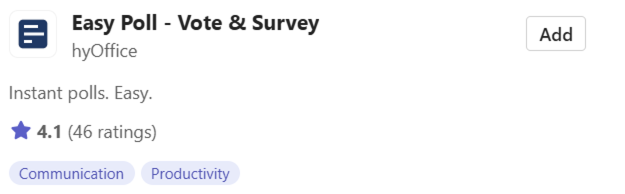
Easy Poll is an app for instantly creating polls in your chats. Polls are particularly useful for lawyers to gather the team’s consensus on meeting times and/or case strategies.
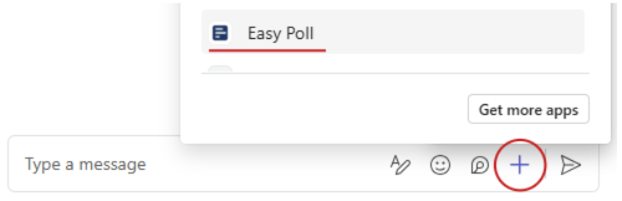
After adding the app to your chat, locate it by clicking the “+” sign on the right of the chat box and selecting the app from the drop-down menu, as shown below. Click on it to create your polls.
Pro Tip: You can reuse existing polls across multiple chats.
3) Shared Calendar
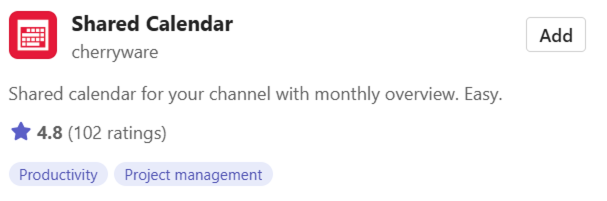
Shared Calendar is an app that allows you to create and share joint calendars, facilitating the coordination of team events and meetings. Additionally, you can share calendars as a link to clients, providing a timeline of events and future deadlines in the matter that you are handling. To use the calendar, download the app and add it to a group with your intended recipients. It will automatically integrate with their respective Microsoft Teams calendars.
Conclusion
If you enjoyed this article, stay tuned for more from the “Technology Basics” series, brought to you by the Law Society of Singapore’s Representation and Law Reform department.
For feedback on this article and/or suggestions for topics this series can cover, please email us at [email protected].
The authors are grateful to Mr Lin Chii Hwa’s contributions to this article during his internship with the Law Society.